Set actions
Rules > Rules manager > Rule items > Set actions
Run IQL
Run IQL provides an open editor for entering functions and queries, as explained in the IQL topic. It offers greater control and flexibility, so we recommend using it instead of more limited actions such as:
-
Set the value of a field
-
Set access rights on record
-
Set the value of a field using IQL
-
Create a record
Besides, this editor enables code version control: Click on the  icon to show change information by line, or click on the
  icon to show history of such changes. The retention period of these logs is unlimited. Request this IQL versioning functionality to our support team if is not already enabled for your application.
Send a notification
Click on the To property box to display a list of fields, roles and users (described below), and select or hit Enter, one at a time to add them. You can also start typing the recipient to quickly filter it.
-
Fields. The value of a Text field of the target record is read and used as a username or an e-mail address. Note that Text fields from other tables are also available via Relation fields of the target record.
-
Roles. A role can be selected as the recipient. In this case, all users of the current application having this role will receive the notification.
-
Users. The username of the application user accounts.
For the message body, you may:
-
Use B and I, for bold and italic style.
You can apply additional formatting with Markdown.
-
{ } Add a field or IQL expression. Click
 to display a list of fields of the target table, including system fields. Select or hit Enter to add. You can also start typing the name of field to quickly filter it. To display fields of a related table, add the Relation first, and then type a dot to finally add the desired field, e.g. ${Relation.Field}. Note that only the value is included, i.e., a label or context has to be given, for instance Invoice number: ${"Invoice number"} or The invoice number ${"Invoice number"} was paid on ${"Payment date"}.
 -
Add a link to a form. Use this to add a hyperlink to the selected form.
If you prefer to insert a link that takes the user not only to the form but to the form selecting the target record, then try any of these methods instead:
-
Use the
tool to add the createFormUrl() function and then embed it with Markdown.[click here](${createFormUrl(RecordId, form("Project information"))}) -
In Form designer, open the desired form, select the Selector where the record will be rendered, go to Properties, and type any word in the URL parameter for selected record property, for example "MyParameter". Save the form. Open the rendered form, click on Copy page link (find it at the three-dot menu of the form). Go back to Rules manager and paste it on the body of the message, where you will replace the value after "MyParameter" for the field
RecordNameadded via, and then embed it with Markdown.[click here](https://MyIStoolsApp/apps/1051/forms/dynamic/3291891?MyParameter=${RecordName})
-
-
Add a link to download a file. You may embed the link with Markdown, e.g.,
[download file here](https://swe02.istools.com/istools/apps/1801/tables/1/records/100551/fielddata/100500)
Select the Display mode:
-
No popup. For low-priority notifications that will be quietly routed directly to the
 icon (located at the top right corner of the screen) to prevent workflow interruptions.
 -
Show message in popup. A regular popup will be displayed.
-
Show message in top banner. For high-priority alerts, a banner at the top of the screen instead of a popup.
Note that users that were offline at the moment of the notification being displayed as popup or banner will get an alert via the icon too.
Finally, click OK to add this rule action.
Send a mail
Click on the To property box to display a list of fields, roles and users (described below), and select or hit Enter, one at a time to add them. You can also start typing the recipient to quickly filter it, or manually enter an e-mail address that is not associated with any field, role, or user.
-
Fields. The value of a Text field of the target record is read and used as a username or an e-mail address. Note that Text fields from other tables are also available via Relation fields of the target record.
-
Roles. A role can be selected as the recipient. In this case, all users of the current application having this role will receive the notification.
-
Users. The username of the application user accounts.
-
Manually entered. Type an e-mail address and hit Enter to add it. The typed value is checked for compliance with the acceptable syntax for e-mail addresses, but it is the administrator’s responsibility to verify that it corresponds to an actually existing e-mail account.
Do the same for CC and BCC recipients.
For the message body, you may:
-
Use B and I, for bold and italic style.
You can apply additional formatting with Markdown.
-
{ } Add a field or IQL expression. Click
to display a list of fields of the target table, including system fields. Select or hit Enter to add. You can also start typing the name of field to quickly filter it. To display fields of a related table, add the Relation first, and then type a dot to finally add the desired field, e.g. ${Relation.Field}. Note that only the value is included, i.e., a label or context has to be given, for instance Invoice number: ${"Invoice number"} or The invoice number ${"Invoice number"} was paid on ${"Payment date"}.You can also use the syntax ${} into the Subject property to include values; for example: The shipment ${recordName} is delayed
-
Add a link to a form. Use this to add a hyperlink to the selected form.
If you prefer to insert a link that takes the user not only to the form but to the form selecting the target record, then try any of these methods instead:
-
Use the
tool to add the createFormUrl() function and then embed it with Markdown.[click here](${createFormUrl(RecordId, form("Project information"))}) -
In Form designer, open the desired form, select the Selector where the record will be rendered, go to Properties, and type any word in the URL parameter for selected record property, for example "MyParameter". Save the form. Open the rendered form, click on Copy page link (find it at the three-dot menu of the form). Go back to Rules manager and paste it on the body of the message, where you will replace the value after "MyParameter" for the field
RecordNameadded via, and then embed it with Markdown.[click here](https://MyIStoolsApp/apps/1051/forms/dynamic/3291891?MyParameter=${RecordName})
-
-
Add a link to download a file. You may embed the link with Markdown, e.g.,
[download file here](https://swe02.istools.com/istools/apps/1801/tables/1/records/100551/fielddata/100500)
Finally, click OK to add this rule action.
You can verify the status of the mails via the Message log form.
Send an SMS
This action makes it possible to send a text message to a mobile phone via SMS.
Click on the To property box to display a list of fields, roles and users (described below), and select or hit Enter, one at a time to add them. You can also start typing the recipient to quickly filter it, or you can enter a number manually.
-
Fields. The value of a Text field of the target record is read and used as mobile number, e.g., the chosen Text field might be called "Mobile phone number" with the value +46706988621. Note that Text fields from other tables are also available via Relation fields of the target record.
It is the user’s responsibility to make sure that the values entered in such a Text field are valid mobile numbers with international format (i.e., +<country code><mobile number>, like +46706988621, where the "+" is optional), because these numbers cannot be verified by the system while creating a rule (i.e., the system cannot know in advance which record will trigger this rule). Note that the ”+” prefix is intentionally optional, to facilitate imports of phone numbers from Excel.
-
Roles. A role can be selected as the recipient. In this case, all users of the current application having this role will receive the notification.
-
Users. The username of the application user accounts. Prior to this, mobile numbers have to be registered for the users in the User administration form.
-
Manually entered. A mobile number can be typed manually. It is the administrator’s responsibility to verify that it corresponds to an existing number typed with international format (i.e., +<country code><mobile number>, like +46706988621).
For the Sender, type the name of the entity (i.e., name of your company, person, etc.) sending the message. You can also use the value of a field with the syntax ${} as Sender; for example: ${Company}. If nothing is specified or the embedded field has no value, the sender set by the server administrator will apply; otherwise, IS Tools will be the default sender.
For the message body, you may:
-
Use B and I, for bold and italic style.
You can add additional formatting with Markdown.
-
{ } Add a field or IQL expression. Click
to display a list of fields of the target table, including system fields. Select or hit Enter to add. You can also start typing the name of field to quickly filter it. To display fields of a related table, add the Relation first, and then type a dot to finally add the desired field, e.g. ${Relation.Field}. Note that only the value is included, i.e., a label or context has to be given, for instance Invoice number: ${"Invoice number"} or The invoice number ${"Invoice number"} was paid on ${"Payment date"}. -
Add a link to a form. Use this to add a hyperlink to the selected form.
If you prefer to insert a link that takes the user not only to the form but to the form selecting the target record, then try any of these methods instead:
-
Use the
tool to add the createFormUrl() function and then embed it with Markdown.[click here](${createFormUrl(RecordId, form("Project information"))}) -
In Form designer, open the desired form, select the Selector where the record will be rendered, go to Properties, and type any word in the URL parameter for selected record property, for example "MyParameter". Save the form. Open the rendered form, click on Copy page link (find it at the three-dot menu of the form). Go back to Rules manager and paste it on the body of the message, where you will replace the value after "MyParameter" for the field
RecordNameadded via, and then embed it with Markdown.[click here](https://MyIStoolsApp/apps/1051/forms/dynamic/3291891?MyParameter=${RecordName})
-
-
Add a link to download a file. You may embed the link with Markdown, e.g.,
[download file here](https://swe02.istools.com/istools/apps/1801/tables/1/records/100551/fielddata/100500)
Finally, click OK to add this rule action.
You can verify the status of the text messages via the Message log form.
Create a record
|
Because Run IQL has been significantly improved, the "Create a record" rule action will no longer be available for applications created after Summer 2026. |
Select the Table where the new record will be part of. Then, select the wished Record group to store it, or keep the automatic option in case you want to assign the same Record group of the record triggering the rule.
Optionally, choose Relation on new record to assign target record to, in case you wish to make the new record to become a child record of the target one (i.e., parent record), or Relation on target record to assign new record to, to assignt the new record as the parent table of the target record (i.e., child record). Note that these options are available only if the Table selected above and the target table of the rule have a relationship previously configured.
|
You can also customize the name of the new record, or existing records, for instance concatenating a prefix with a consecutive number like "ACME-1001". For that, create another rule action of type Set the value of a field with a formula, and select Record. |
Set the value of a field
|
Because Run IQL has been significantly improved, the "Set the value of a field" rule action will no longer be available for applications created after Summer 2026. |
Select this action, if you want to change the value of a field to a constant value or to the current value of another field. Click on the Add action button. Then, choose the type of the field to be changed. Find and select that field in the drop-down list below, and type the New value or select other value (it can be a Field with new value or other parameter, depending on the type of field). Also, specify if the current value stored in the target field will be replaced or a new value will be inserted after the old value.
Set access rights on record
|
Because Run IQL has been significantly improved, the "Set access rights on record" rule action will no longer be available for applications created after Summer 2026. |
Select this action to change the access rights of a record by moving it to a specified record group. Click on the Add action button. Select the record group that the record will belong to. This group must be pre-configured with the desired access rights.
Set the value of a field with a formula
|
Because Run IQL has been significantly improved, the "Set the value of a field with a formula" rule action will no longer be available for applications created after Summer 2026. |
This action changes the value of the selected field to a new value computed with a formula. By choosing this action, it is possible to select the field to which the formula will set its result, one or more built-in functions, mathematical operators, constants and other fields that will be a part of the formula.
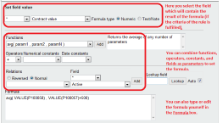
Set field value. This is a list of fields of the Target table. Select one. The formula will change the value of this field. To easily find a field, you can use the the drop-down to the left of this list, which contains * by default, to filter fields per type.
The Formula type radio buttons indicate either what kind of value the result of the formula will have or what kind of parameters are used in the formula:
-
Numeric, if the target field (i.e., the field which will get the resulting value of the formula) is Number, Date, Date time or Checkbox (checked = 1, if not checked = 0). All values retrieved will be interpreted as numbers, meaning that strings (text) included in the formula will be converted to a number. But if a string cannot be converted, then it will be interpreted as 0. A formula of this type returns a number as a result.
-
Text/Note, if the target field is Record, Record group, Text, Note, Drop-down, Link or Relation or if there is any string in the Formula box used as parameter (i.e., a text within quotation marks, e.g., moveToRecordGroup("STANDARD")). A formula of this type returns a string as a result. It interprets any value, such as alphabetical and special characters, and even numbers, but treated as text. Date and Date time values need to be converted to a string (toDatePattern, toDateString and toDateTimeString functions) before they are included in this type of formula. For Relation, the Text value provided must exactly match (case-sensitive) an existing Record name of the related table.
Functions. Select a function in the Functions drop-down, and note that the list box at its right displays a description of the function syntax and operation. Click on the Add button to insert it into the Formula box at the bottom of the form. If this box already contains text, insertion takes place at the current caret position in the box.
Operators, Numerical constants, Date constants and String constants. Select an item in one of these drop-downs in order to insert it at the current caret position into the Formula box at the bottom of the form. Numerical and date constants can be used with implicit multiplication, e.g. currentDate() + 2D – 2MO.
|
The [Month] and [Year] time constants are approximate. One month is set to 31 days, and one year to 365 days. Also, one day is 24 hours, but may be 23 or 25 hours when the daylight saving time change occurs. |
Other examples:
-
(Actual date - Plan date) / D → D: In this case, to return in days a subtraction of. -
if (hasRole("MANAGER 1") OR hasRole("MANAGER 2"), "Reviewed by the Manager", 0) → OR: To have an alternative condition in the formula (i.e., at least one the conditions need to be fulfilled to take action) -
if (Order total > 1000 AND Status = "Ongoing", Requires approval from Manager = 1, 0) → AND: To have an additional condition in the formula (i.e., both conditions need to be fulfilled to take action) -
"Revised on " + Revision date + "by " + Revision user + NEWLINE → NEWLINE: To return a value or concatenation of them in a Note field inserting a new line (i.e., carriage return)Note that some of the operators will be represented by special characters when added to the Formula box, e.g., AND turns to &&, OR to ||, etc.
Set a field into the formula. If you want to include a field into the formula, find and select that field in the Field drop-down list (located in the third section of the current window), which displays all fields of the Target table (to easily find a field, you can use the the drop-down above this list, which contains * by default, to filter fields per type). But if you want to select a field that belongs to other table that has a relation with the Target table, choose either a Reverse or Normal relation, and then choose a relation in the Relations drop-down list. This action will refresh the list of fields available to select and use into the formula. Click the Add button to insert the field.
|
If you want to insert a field as parameter of a function, you will have to first double-click the parameter in which the field will take place, before you click the Add button to add the field. |
Formula box. Items selected with the drop-downs above (functions, operators, constants and/or fields) will be inserted at the current cursor position in the Formula box. Here, fields are indicated by their REF (this is an IS Tools numerical reference used to uniquely identify fields within an application) in the formula, not by their name. In this box, the formula can be edited or directly configured.
Lookup field. To verify which field has a given REF (this is an IS Tools numerical reference used to uniquely identify fields within an application) , you may click the value of a REF in the Formula box to show its value to the text box in the Lookup field. You may also type or paste the value of a REF into the text box in this section. Click the Lookup button to display the name of the field in the Field drop-down. You may alternatively tick the Auto checkbox to look up REFs automatically without clicking this button.
A formula must be validated (with the Validate button at the bottom of the form) in order to save it. If the formula is successfully validated, the Next button becomes enabled.
Set the value of fields using IQL
|
Because Run IQL has been significantly improved, the "Set the value of fields using IQL" rule action will no longer be available for applications created after Summer 2026. |
In the Fields to use (in list order) box, select the field(s) which will store the resulting value (i.e., the target field). In the IQL box, type:
-
The name of field(s) that contain the value you want to set. This field can be accompanied by a function.
-
The table of the above field(s). Can be any table (the same target table, a related one, or even a table with no relation with the target). The keyword from must be used, like from table.
-
The criteria to find the value.
For instance, in Fields to use (in list order), select Responsible, and in IQL, type
Name from Employee where Project = 'Campaign' and Approved is not null.If you select multiple fields (to obtain more values at once), like Responsible, Years of service and Current manager, make sure you type the necessary fields in the right order, separated by commas, like:
Name, Seniority, Manager from Employee where Project = 'Campaign' and Approved is not null|
If you wish to have a statement similar to the one above, but in Run IQL, where multiple fields are set at once, use tuples, like this: |
Other elements like operators, functions and system defined fields can also be included.
Examples:
-
createdusername(Name) from Employee where Project = 'Campaign' and Approved is not null -
recordid, Name, createddate(Name), createdrealname(Name), updateddate(Name), updatedrealname(Name) from Employee where updateddate is not nullSystem defined fields can be used as functions at Record level or at Field level. For the latter one, the field must be provided after the function within parentheses. For example, while createddate(Field) refers to the day the Field was inserted, createddate refers to the day when the record was created.
-
Customer from Order where recordname in(Order from OrderItem where Total > 10000), note how a query can be nested within a main one. -
min(DeliveryDate) from ProductTable where Product = ‘A’ and RelationToShipmentTable = @targetrecord, would return the earliest date not only from all products that are ‘A’ in the whole table, but from a limited bunch of rows that are children of the parent being targeted in the form. -
Field from Table where Product = @triggerrecordmakes reference of the record that triggers the rule. -
round(avg(NumberField1)) from Table1to remove decimals from the number resulting from average of all values in NumberField1 -
upper(CustomerName) from CustomerTablewould return the Customer name string in uppercase. -
substring(TextField, 0, 2) from Table1would return ABC for a TextField with value ABCDE. -
Concatenation is not a function but the || operator can be used for that purpose; e.g.:
Text1||'-'||Text2 from Table1would result in Value1-Value2
|
For geolocation, use the currentUserLocation() and geoDist() functions. |
|
Set field values using IQL can only have one result to set as value. If the IQL query returns more than one result from multiple rows, the value from the first row will be set. If the IQL query does not return any result, i.e., no row is found, no value will be set nor changed on the target record. |
|
Read more about the syntax, functions and examples of IQL here. |