XML reports
Reports > XML reports
XSLT templates for XML reports
It is possible to upload to the IS Tools server XSLT templates to apply transformations to reports produced in XML format. The transformation is performed on the IS Tools server, and the result is stored as a report file in the selected format and can be downloaded for examination. This type of template consists of an .xsl file.
An XSLT template is uploaded to the IS Tools server in the Report macro files form.
An XSLT template is subsequently selected as Macro/transform in the Basic information section when configuring a report in the Report manager.
Finally, when the report is executed in the Report manager, the output format may be:
-
XML with template, to review how the XLST template is applied to the XML code.
-
Excel, in case the XLST template is meant to perform changes on the resulting spreadsheet.
-
File export, for when the XLST template is used to format the contents of the resulting zip file, such as custom directory and file names.
Writing an XSLT template
The suggested procedure for producing an XSLT template is to first generate and download an XML test report (without template) that contains the required data, and subsequently writing a suitable XSLT template based on the XML code of this report.
The present section does not explain in detail how to prepare an XSLT template for this purpose. It is only meant to provide general information on the structure of an XML report, and on how to access its data from XSLT code.
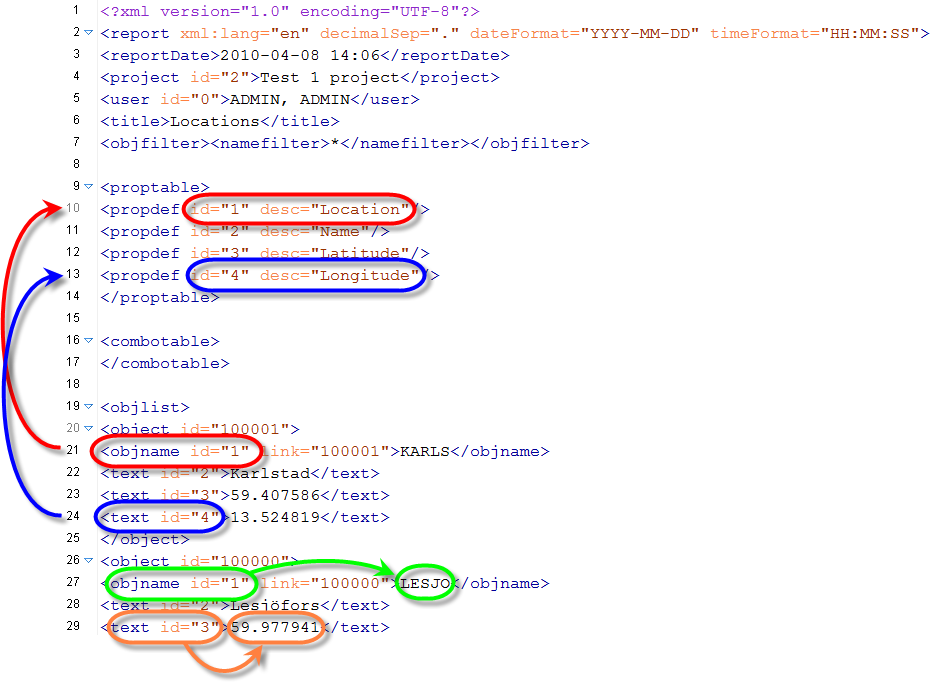
The above figure shows part of an XML report as an example. You may note, in particular, the following use of XML elements:
-
<proptable> (line 9) contains a list of <propdef> elements, each linking the ID of a table or field definition to its desc (i.e., the name by which it is identified in the IS Tools GUI).
-
<combotable> (line 16) contains a list of the Relations.
-
<objlist> (line 19) contains a list of <object> elements. Each <object> element corresponds to a record.
-
Each <object> element contains one <objname> element, with an ID attribute identifying the ID of the corresponding table listed in the <proptable> element (an example of this relation is highlighted in red). This establishes a relation between a record and the name of its field type, which is stored in the desc attribute of the corresponding <propdef>.
-
The value of an <objname> element contains the name of the record (an example is highlighted in green).
-
Each <object> element may further contain a list of fields. Each field is stored as an element. The names of these elements correspond to the field type (e.g., text in line 24).
-
The ID attribute of a field refers to the ID attribute of a <propdef> (an example is highlighted in blue). This establishes a relation between a field and the name of its field definition in the IS Tools platform, which is stored in the desc attribute of the corresponding <propdef>.
-
The value of a field is stored as the value of the corresponding element (an example is highlighted in orange).
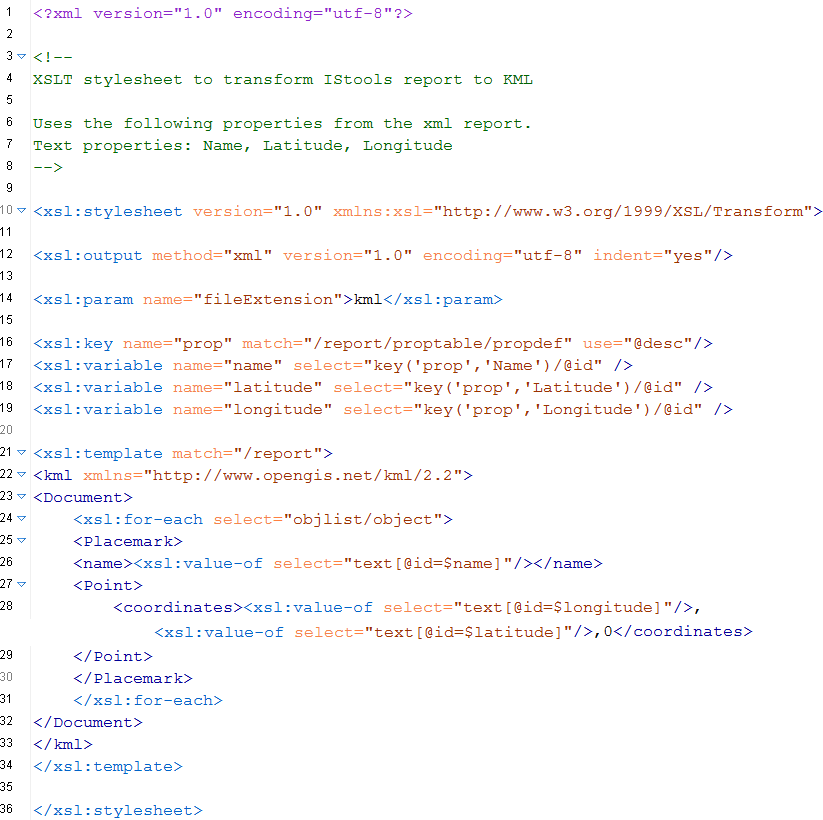
The above figure shows an example of a corresponding XSLT template. Note, in particular:
-
Line 14 sets the extension of the output file to .kml.
-
The <xsl:key> defined in line 16, will be used later in the XSLT code as a key named "prop" (the key name is stored as the value of its name attribute) to match each <propdef> element in the report and extract the value of its desc attribute.
-
The XSL variables name, latitude and longitude defined in lines 17-19 will store values extracted from the IS Tools fields Name, Latitude and Longitude, respectively, listed in the report. Note how the values of these fields are extracted from the report via their respective ids. This syntax avoids the hard-coding of ID values directly in the XSLT template, thus making it unnecessary to manually update the template in case the IS Tools ID values of field definitions and tables should change as a results of changes in the architecture of the IS Tools application.
-
The loop in lines 24-31 accesses in turn each <object> in the <objlist>.
-
<Placemark>, <name> (line 25), <Point> (line 27) and <coordinates> (line 28) elements are used to organize the extracted values in KML format.
-
The <name> element receives the value stored in the IS Tools Name field of a record listed in the report.
-
The <coordinates> element similarly receives the comma-separated values of the corresponding Latitude and Longitude IS Tools fields listed in the report. A constant ", 0" string is added to this data to comply with the KML format.